Understand your delivery rates & performance
| Tab | What it shows |
|---|---|
| Overview | Takes you back to your Home dashboard. |
| Messages | Delivery, read and failure numbers, campaigns, spend, logs and exports. Most of this article. |
| Links | Taps and leads for your shareable links, plus clicks on the links in your campaigns. Growth, Pro and Custom. |
| Commerce | Orders and sales from your shop. Shown only if Commerce is on for your workspace. |
The five cards at the top summarise your messages in the selected range:
| Card | What it means |
|---|---|
| Initiated | All messages in the period, in both directions (sent and received). |
| Sent | Outgoing messages that WhatsApp accepted. |
| Delivered | Messages that reached the customer's phone. Shown as a % of sent. |
| Read | Messages the customer opened (blue ticks). Shown as a % of sent, not of delivered. |
| Failed | Messages that couldn't be delivered. Shown as a % of sent. |
Below the campaigns table you'll also find four charts:
- Message volume: messages per day, incoming and outgoing.
- Messaging spend: what you spent, broken down by message category.
- Message status: a breakdown of delivery statuses.
- Busiest hours: messages by hour of the day (IST). This is useful for timing your campaigns.
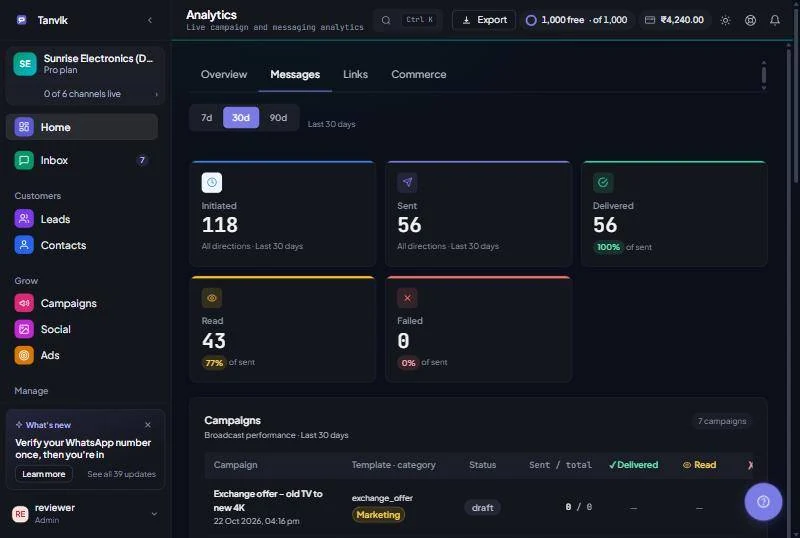
The Campaigns table lists every campaign in the selected range. For each one you'll see the template and category, status, Sent / Total, Delivered, Read, Failed and Est. Cost. Click a row to open that campaign's detail view:
- Summary: Submitted, Sent, Delivered, Read and Failed, plus Net Cost (what was charged after any refunds that were given for failed messages). If billing details aren't available yet, you'll see an estimated cost instead.
- Delivery funnel: how messages moved from submitted to sent, delivered and read.
- Quality score: combines delivery rate and read rate. Next to it are the Read rate and Send duration (how long the campaign took from start to finish).
- Failure analysis: failed messages grouped by WhatsApp error code, with a plain-English description and a suggested fix. Hover over a code for details.
- Per-message log: every recipient with their status, sent time and delivered time.
The Smart actions strip at the bottom has buttons to retarget the failed numbers, follow up people who haven't read the message, re-message those who received it, clone the campaign, or export a CSV. To retarget or follow up with the right people already loaded, use Next steps in the campaign's report under Grow → Campaigns: see Retarget and follow up. Click All Campaigns to go back to the list. The CSV and PDF buttons at the top export this campaign.
The Logs & exports panel at the bottom of the page has four tabs:
- Message Logs: set a From and To date, and optionally a template name or mobile number, then click Apply. Each row shows the phone number, template or message, category, status, cost and date.
- Inbound: replies and incoming messages from customers, filtered by date and mobile number.
- Opt-outs: numbers that replied STOP or were marked DND, with the source and date. These numbers are automatically left out of every campaign. Click Export CSV to download the list and clean your own contact lists before importing.
- Export data: download reports (see below).
| Export | Where | What you get |
|---|---|---|
| Campaign report | Export button at the top of the page | PDF or CSV for all campaigns in the selected range, or only the campaigns you choose. |
| Single campaign | CSV / PDF in a campaign's detail view | That campaign's per-message log (CSV) or a printable summary (PDF). For the PDF, choose "Save as PDF" in the print dialog. |
| Quick conversation export | Export data tab | Every message in a date range, one row per message. Downloads immediately with Download CSV. |
| Detailed report export | Export data tab | Campaign, cost and delivery detail per message, for All messages or Inbound only. Click Request export. It's prepared in the background and appears in the list below with a Download link. Each request can cover up to 31 days. |
| Opt-out list | Opt-outs tab | All opted-out numbers as a CSV. |
Was this article helpful?