There are four ways to get help: read the Help Center, ask the Tanvik Help assistant inside the app for a quick answer, raise a support ticket when you need our team to look into something, or message us on WhatsApp. This article shows when to use each one and how to follow a ticket until it is fixed.
Which option to use
Option
Best for
Where to find it
Tanvik Help assistant
Quick "how do I..." questions about campaigns, templates, billing, contacts or automations.
The round help button in the bottom-right corner of the app.
Support ticket
Something is broken, or you need our team to check your account. You get a written record and replies in one place.
Settings → Support Tickets in the sidebar.
WhatsApp
Plan changes, activating a plan, or a quick chat with our team.
The Chat with us button on this Help Center, or any Talk to us button in the app.
Help Center
Step-by-step guides you can read any time.
The ? icon in the top bar (it opens in a new tab), Settings → Help Center, or Browse Help Center on the Support page.
Two help icons, two jobs. In the top bar, the lifebuoy icon opens your Support page (tickets). The ? icon next to the bell opens this Help Center. The round chat button in the bottom-right corner of the page is the Tanvik Help assistant. Pressing the ? key on your keyboard shows the keyboard shortcuts. See Keyboard shortcuts and quick search.
Ask the Tanvik Help assistant
01
Click the round help button
It sits in the bottom-right corner of the page. The Tanvik Help chat panel opens.
02
Type your question
Write it in plain words, for example "How do I add a teammate?", and press Send or Enter. The assistant remembers what you asked earlier in the same chat, so you can ask follow-up questions.
03
Rate the answer
Click Helpful or Not helpful under an answer. This helps us improve the assistant.
04
Still stuck? Hand it to a person
Click Still stuck? Contact Support at the bottom of the panel. Your browser asks you to briefly describe your issue. Type it and confirm. A support ticket is created for you with your recent chat and the page you were on, so you do not have to explain it all again.
Button in the way? Drag the round help button to any corner of the screen. Tanvik remembers the corner you choose.
A ticket created from the chat has no screenshots. To add one, open the ticket from Settings → Support Tickets and attach it in a reply.
Raise a support ticket
01
Open Support Tickets
Click the lifebuoy icon in the top bar, or open Settings in the sidebar and click Support Tickets. Click New Ticket.
02
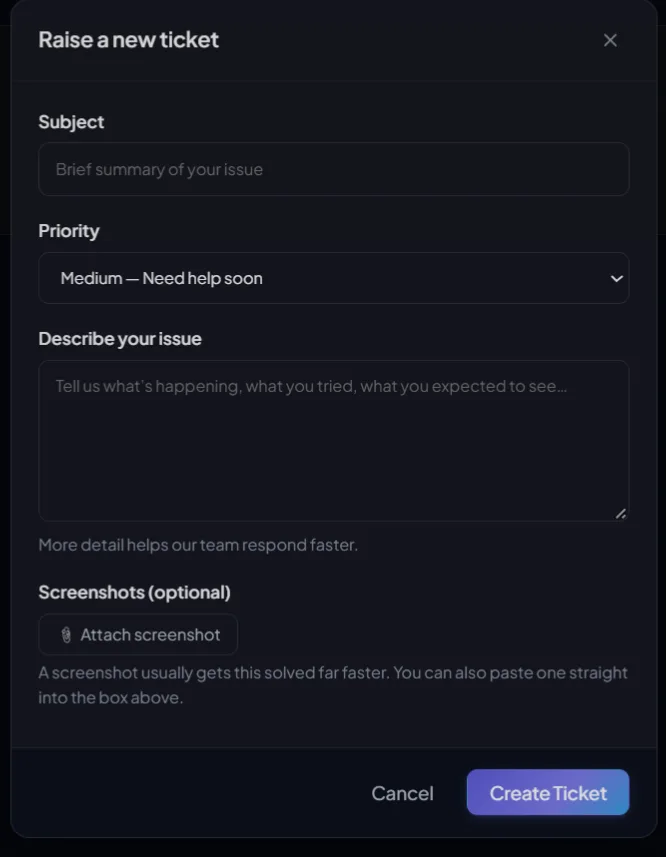
Add a subject and priority
Write a short Subject (up to 120 characters). Pick the Priority that matches the impact on your work (see the table below).
app.tanvik.io/support
03
Describe the issue
In Describe your issue, say what happened, what you tried and what you expected to see. Subject and description are both required.
04
Attach screenshots
Click Attach screenshot to add images or PDFs, up to 10 MB each. You can also paste a screenshot straight into the description box.
05
Click Create Ticket
You will see Ticket created — we will respond soon and the ticket opens so you can follow it.
Priority
Use it when
Low
General question
Medium (default)
You need help soon
High
It is blocking your work
Urgent
A critical issue
A screenshot usually gets things solved far faster. Include the error message, the page you were on and, for message problems, the contact's phone number. If you close the form before sending, Tanvik keeps your draft and offers it back next time you open Support.
Track and reply to your tickets
The Support page shows counts for Open, In Progress and Resolved tickets, and lists every ticket raised by your workspace under Your Tickets. Each ticket shows its priority, a short ticket number such as #1a2b3c4d and how long ago it was raised. Click a ticket to open the full conversation.
Status
What it means
What you can do
Open
Your ticket is waiting for our team.
Add more details or screenshots in a reply.
In progress
Our team is working on it.
Reply to answer questions from our team.
Resolved
Our team believes the issue is fixed.
Confirm it is fixed, or reopen it.
Closed
The ticket is finished. You can no longer reply.
Raise a new ticket if you need more help.
To reply: type in the box at the bottom of the ticket and click Send Reply. To add files, click Attach screenshot, paste an image into the box, or drag and drop files onto it. Replies from our team are marked Tanvik Support.
You see new replies straight away. While the Support page is open, a New reply from Tanvik team message pops up and the ticket gets a New reply badge. An open ticket updates on its own, with no need to refresh.
Close or reopen a ticket
When our team marks a ticket as resolved, the reply box is replaced by the question Did this fix your issue?
Yes, all good
Closes the ticket. You will see "Glad we could help! Ticket closed."
No, reopen ticket
Sets the ticket back to Open and adds a note that the issue is not fixed yet. Add a reply explaining what is still wrong.
Message us on WhatsApp
Our team is on WhatsApp at +91 81219 27429. Click Chat with us at the top of this Help Center, or Still need help? on the right of any article. In the app, buttons such as Talk to us, Message our team and Activate over WhatsApp open WhatsApp with a message already written for you.
Tell us your workspace name. When you message us on WhatsApp, include your business or workspace name and, if you have one, your ticket number. It helps us find your account quickly.
Common questions
How fast will I get a reply?
Our team usually replies within a few hours. Choose the priority that matches how much the problem affects your work, so we can see how urgent it is. You get a notification when we reply.
Can my teammates see my tickets?
Yes. The Support page lists tickets raised by anyone in your workspace, and shows who raised each one.
My file will not attach.
Files over 10 MB are skipped with a warning. The Attach screenshot button accepts images and PDFs. Crop or compress the file and try again.
The Help assistant is not answering.
If it takes too long, it says so and asks you to try again. If it keeps failing, click Still stuck? Contact Support to raise a ticket, or message us on WhatsApp.
My ticket is closed but the problem came back.
Closed tickets cannot take new replies. Raise a new ticket and mention the old ticket number.