Appointments, loyalty points and the kitchen display
These tools are part of Commerce (Pro and Custom plans), so Commerce must be switched on for your workspace. Here is where to find each one:
| Tool | Best for | Where to find it |
|---|---|---|
| Appointments | Salons, spas, clinics, dental and wellness, and other businesses that book time slots | Commerce → Overview, then the Appointments tab |
| Loyalty | Any business with repeat buyers: retail, food, beauty, services | Commerce → Overview, then the Loyalty tab |
| Kitchen | Restaurants, cafes, bakeries, cloud kitchens and caterers taking orders on WhatsApp | It has no sidebar item. Open app.tanvik.io/commerce-kitchen, or search for Kitchen in quick search (Ctrl+K or Cmd+K) when your workspace is set up as a food business |
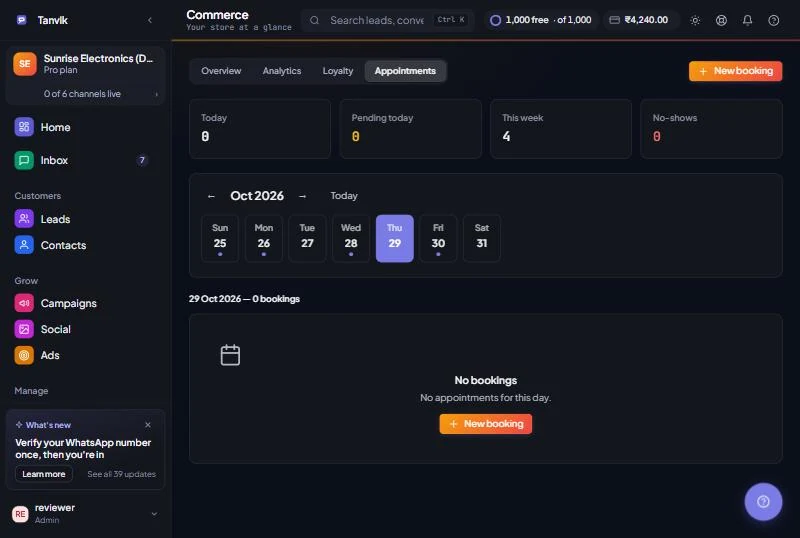
The Appointments tab shows one week at a time. The cards at the top count bookings Today, Pending today, This week and No-shows. Days with bookings have a dot under the date. Use the arrows to move between weeks and Today to jump back. Click a day to see its bookings in time order.
| Status | Buttons on the booking | What happens |
|---|---|---|
| pending | Confirm, Send reminder, No-show | Waiting for you to accept the booking. |
| confirmed | Mark done, Send reminder, No-show | The slot is booked. |
| completed | None | The appointment happened. |
| no_show | No-show | The customer didn't turn up. Counted in No-shows. |
| cancelled | None | The booking was cancelled. |
Send reminder sends the customer a WhatsApp message with the service, date, time and staff name. Use it the day before, or a few hours ahead, to cut no-shows. The tab updates live, so everyone on your team sees new bookings and status changes straight away.
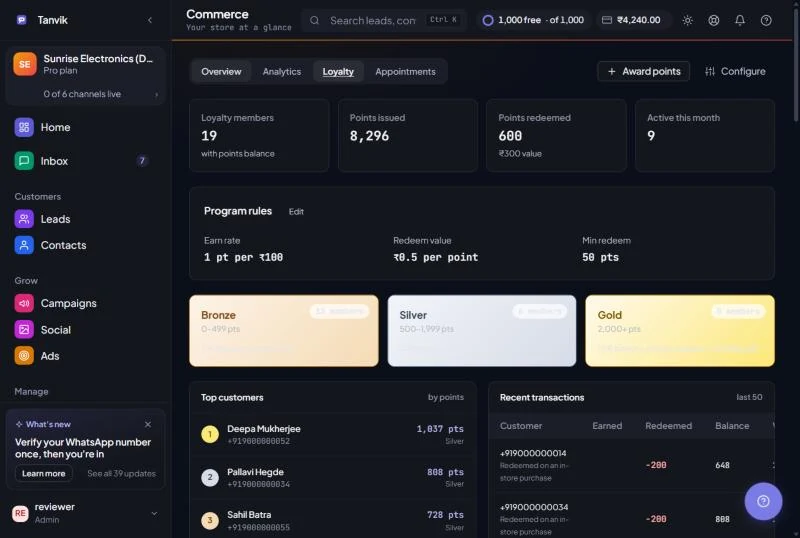
The Loyalty tab shows Loyalty members (customers with a points balance), Points issued, Points redeemed with their rupee value, and customers Active this month. Below that you will see your Program rules, your tiers, the Top customers by points and the last 50 Recent transactions.
Until you change them, the rules are 1 pt per ₹100, each point is worth ₹0.5, and customers need at least 50 pts to redeem. Customers move between tiers automatically based on their balance:
| Tier | Points balance | Perks shown |
|---|---|---|
| Bronze | 0–499 | 5% bonus on every order |
| Silver | 500–1,999 | 10% bonus + free delivery |
| Gold | 2,000+ | 15% bonus + priority support + birthday gift |
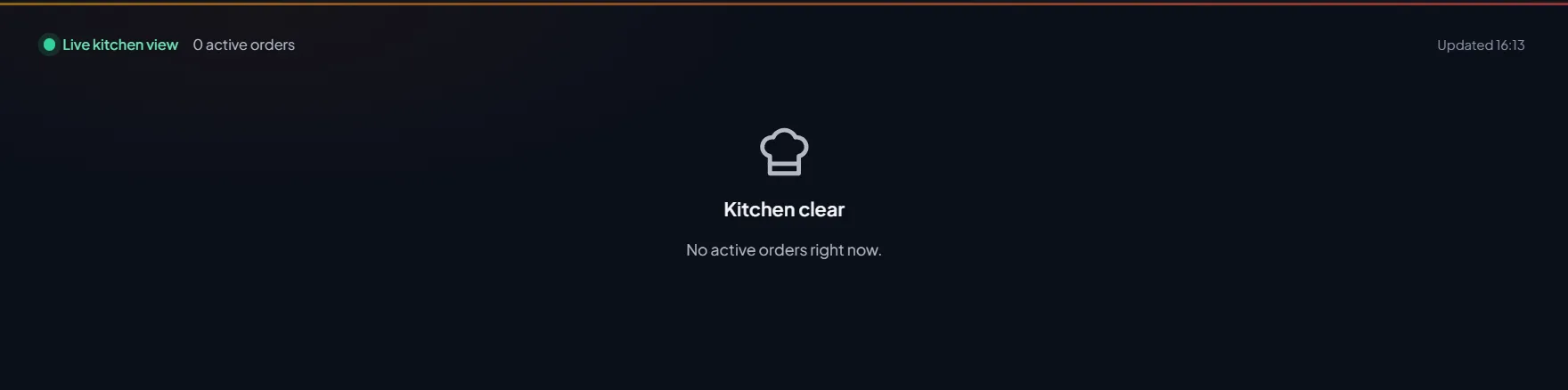
The Kitchen Display is a live screen for your kitchen staff. Open it on a tablet or a screen in the kitchen. New orders appear on their own without refreshing, and the oldest orders are shown first.
| Lane | Button | What the button does |
|---|---|---|
| New orders | Accept | Moves the order to In progress and tells the customer on WhatsApp it is confirmed. |
| In progress | Mark Ready | Moves the order to Ready / Packing. |
| Ready / Packing | Mark Shipped | Marks the order shipped, removes it from the screen and tells the customer on WhatsApp. |
Each ticket shows the order number, customer, items with quantities, the order type (Delivery, Takeaway or Dine-in) and how long ago the order came in. The timer changes colour when an order is waiting too long:
| Lane | Warning | Late | Marked urgent |
|---|---|---|---|
| New orders | After 3 min | After 5 min | After 7 min |
| In progress | After 12 min | After 20 min | After 25 min |
| Question | Answer |
|---|---|
| A customer didn't get the confirmation or reminder | They haven't messaged you in the last 24 hours, so the chat message couldn't be delivered. Send them an approved template from Inbox. |
| Can I change the service list for appointments? | Not yet. Pick the closest service or Other, and add details in Notes. |
| Why isn't an order on the kitchen screen? | The kitchen only shows orders that are New, Confirmed or Packing. Orders still waiting on the customer, and shipped, delivered and cancelled orders, are not shown. |
| Why doesn't a customer show in Top customers? | Only customers with a points balance above zero are listed, and only the top 10. Award them points first. |
| I can't see Appointments, Loyalty or Kitchen | Message our team so we can check which tools are set up for your workspace. |
Was this article helpful?