Your Home dashboard, explained
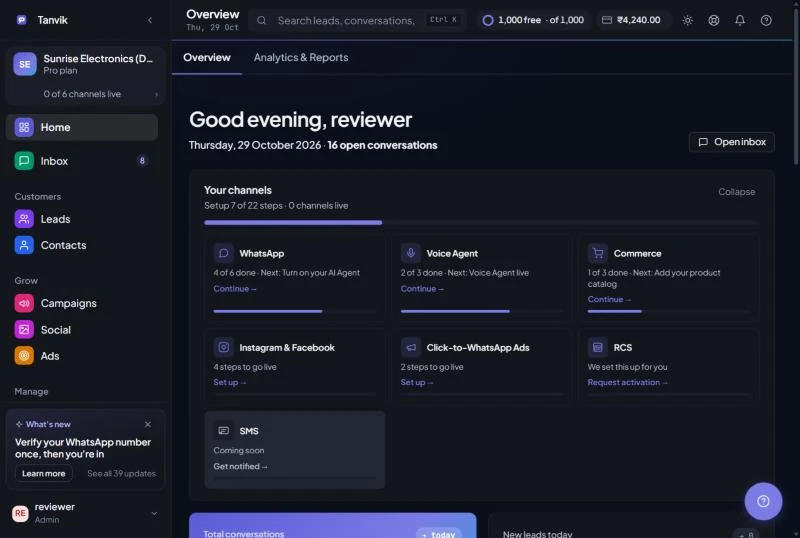
What you see on Home depends on what your account can access. Each number tile is tied to a feature: if you don't have access to Leads, the lead tiles and the New lead button are hidden. Ask your workspace admin if something you expect is missing.
Until your first chat or lead arrives, Home shows a setup card with a 7-step checklist instead of numbers. Completed steps get a tick; the next step to do is highlighted.
| Step | What it means |
|---|---|
| Account created | Done as soon as you sign up. |
| Connect WhatsApp | Click the green Connect WhatsApp button and finish the WhatsApp setup window. Select your business account and phone number before clicking Finish. |
| Demo credit added (₹20) | Ticked once the demo credit has been added to your wallet. |
| Verify business (onboarding call) | Ticked after your business is verified with our team. |
| Send a test message | Send a WhatsApp message to your own business number. It will show up in your Inbox. |
| Capture your first lead | Ticked when your first lead exists in Leads. |
| Turn on the AI bot | Ticked when at least one chat is being handled by the AI bot. |
Once your first chat or lead has arrived, the checklist gives way to the numbers below. If you are a workspace admin, you also see a Your channels card above them, with one tile for each channel Tanvik offers: WhatsApp, Instagram & Facebook, Click-to-WhatsApp Ads, RCS, SMS, Voice Agent and Commerce.
| Tile says | What it means |
|---|---|
| All set (with a Live tag) | The channel is set up and working. Click Open to go to it. |
| 2 of 6 done · Next: ... | You have started. The next step is named. Click Continue. |
| 6 steps to go live | You have not started. Click Set up. |
| We set this up for you | Our team finishes this one with you. Click Request activation. |
| Not in your plan | Click Talk to us and our team will call you about it. |
| Coming soon | Not available yet. SMS is under development. Click Get notified to be told when it is ready. |
- Click a tile to open a panel with every step of that channel. Click Go next to a step to jump straight to it. A step is ticked only when the thing is really set up, not when you click it.
- The card sorts itself: WhatsApp first until it is live, then unfinished channels, then live ones.
- Click Collapse to tuck the card away and Show to bring it back. It collapses by itself when everything in your plan is set up. Your choice is remembered in this browser.
- The sidebar line, such as 3 of 7 channels live, takes you to this card.
The top row greets you, shows today's date and how many open conversations you have (chats not marked resolved, closed or archived). The Open inbox button takes you straight to your Inbox. Below that are four tiles. Click any tile to jump to the page behind it.
| Tile | Big number | Small badge and line | Opens |
|---|---|---|---|
| Total conversations | All conversations in your workspace | Badge: new chats started today. Line: how many are open right now. | Inbox |
| New leads today | Leads created since midnight | Line: total leads in your workspace. | Leads |
| Messages sent today | Messages you sent today | Badge: messages received today (shown as "in"). Line: sent plus received today. | Analytics & Reports |
| Conversion rate | Converted leads ÷ total leads, as a % | Badge: number of leads won. Line: total leads it was measured against. | Leads |
If your own WhatsApp Business number is connected directly through Meta, a WhatsApp account health card appears under the tiles. It shows the details WhatsApp reports for your number:
| Field | What it tells you |
|---|---|
| Quality | GREEN, YELLOW or RED. This is WhatsApp's rating of how customers react to your messages. |
| Messaging tier | How many unique customers you can start conversations with in 24 hours, for example 1K/24h. |
| Verified name | The business name WhatsApp has approved for your number. |
If your plan includes Campaigns, bulk sending or Analytics, Home also shows Campaign operations: a delivery report for every message your workspace sent. Use the filters at the top of the card:
| Counter | Meaning |
|---|---|
| Initiated | Messages attempted in the period. |
| Sent | Messages accepted for delivery. Shown as a % of initiated. |
| Delivered | Messages that reached the customer's phone. Read messages are counted here too. |
| Read | Messages the customer opened. |
| Failed | Messages that could not be delivered. |
| Reply | Inbound replies from customers. |
The Status distribution ring shows the final outcome of every message: Read, Delivered, Sent, Failed and Awaiting status (no update from WhatsApp yet). Traffic trends shows message volume by status per day, per week or per month, depending on how long a period you picked.
The Total visitors chart plots two lines: Conversations started and Leads created. Switch the range with Last 7 days, Last 30 days or Last 3 months. The 3-month view groups days into weeks so the line stays readable. Hover over any point to see the exact numbers for that day or week.
At the bottom of Home is a table with four tabs:
| Tab | What it shows |
|---|---|
| Today's leads | Leads created today (India time), newest first. |
| All leads | Your 20 most recent leads. |
| Pipeline | How many leads sit in each stage: New, Contacted, Qualified, Converted and Lost. The count on the tab is your active pipeline (all leads except Converted and Lost). |
| Activity | The latest chats and new leads. Each chat says whether it is on Bot handling or Human handling. |
Click any lead row to open its full lead page. Use Customize columns to show or hide the Source, Status, Score and Contact columns. View all leads and Add lead take you to the Leads page. In this table, leads in the Contacted stage are labelled In process.
During your free trial, a bar at the top of every page tells you how many days are left and how much trial credit remains. Click Upgrade on it to choose a plan. In the last days it turns amber, and when the trial is over it says Your free trial has ended.
If you signed up yourself, Home may also show a small card in the corner in your first days: Book your free 20-minute tour with our team. Click Call me now to ask for a call, Pick a slot to choose a time, or Not now to close it.
Do I need to reload Home to see new data? No. Home refreshes on its own a moment after a new lead, chat or message arrives.
Why don't I see the WhatsApp account health card? It only appears when your own WhatsApp Business number is connected directly through Meta.
Why is a tile or the Campaign operations card missing? Your account doesn't have access to that feature. Your workspace admin can change this under Settings → Workspace → Team.
Campaign operations says "Stats unavailable right now". The report couldn't load. Refresh the page after a minute. If it keeps happening, chat with us.
Why does Conversion rate look low? It divides converted leads by all leads ever created, not just this month's. Keep lead stages up to date so it reflects reality.
Was this article helpful?