Manage leads in the pipeline
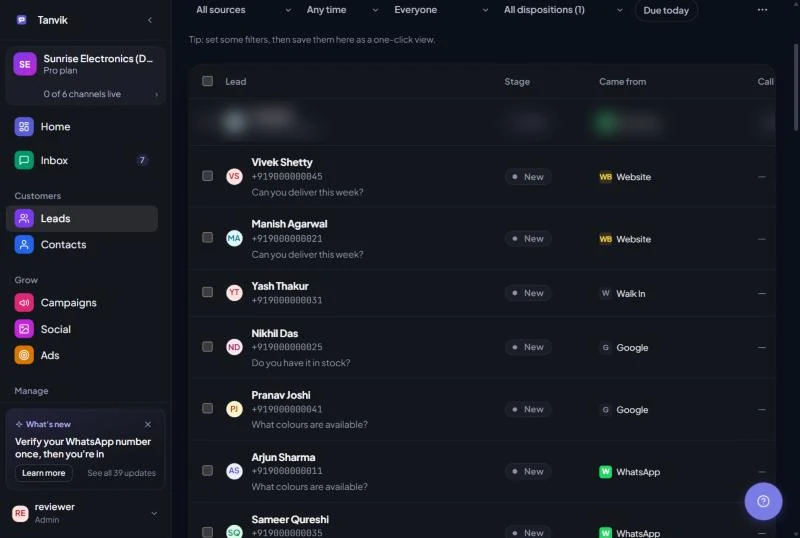
You don't have to add every lead by hand. New WhatsApp conversations create leads automatically, and so do forms, ads, Instagram and Facebook chats, imports and connected tools. Your job is mostly to move leads forward and record what happened.
| Stage | Use it when |
|---|---|
| New | The lead just arrived and nobody has spoken to them yet. |
| Contacted | Your team has reached out or replied. |
| Qualified | They have a real need and budget. Worth chasing. |
| Converted | They bought. The deal is won. |
| Lost | They won't buy. Record Why it was lost on the lead page so you can learn from it. |
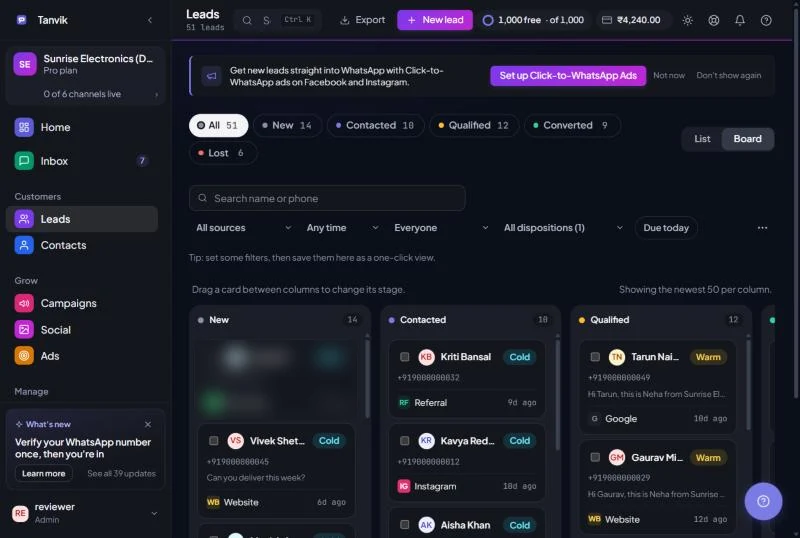
The chips above the list (All, New, Contacted, Qualified, Converted, Lost) show a live count for each stage. Click a chip to see only that stage.
Use the List / Board switch to change how leads are shown.
| View | Best for | How it works |
|---|---|---|
| List | Searching, sorting and bulk work | 50 leads per page. Click the Lead, Stage, Came from or Added column header to sort; click again to reverse. Each row shows the lead's phone and last message, plus Stage, Came from, Call result, Interest, Added and any custom fields you chose to show. |
| Board | Moving leads through stages visually | One column per stage. Drag a card between columns to change its stage. Each column shows the newest 50 cards; click + N more — open in table to see the rest. |
In the list, the pencil next to a name renames the lead in place. The two icons at the end of each row are Send template and Edit lead. Click anywhere else on a row to open the full lead page.
Import a CSV file
Sync with a Google Sheet
To stop syncing, open Google Sheet sync again and click Disconnect. Rows already in the sheet stay as they are.
| Control | Options |
|---|---|
| Search | Type a name or phone number. |
| Source | Starts as All sources. Pick one to see only leads from there. |
| Added | Any time, Last 24 hours, Last 7 days, Last 30 days, Last 90 days. |
| Messaging | Everyone, Can be messaged or Do not disturb. Leads you can't message carry a Do not disturb tag. |
| Call result | Starts as All dispositions. Filter by the outcome of a Voice AI call (see below). |
| Due today | Shows only leads whose follow-up date is today. |
If nothing matches, click Clear filters to reset them.
If you use the same filters every day, save them. Set your filters, then click + Save current filters as a view in the Saved views strip above the list, give the view a name and click Save view. Click the view's name any time to bring those filters back, or the × to remove it.
A view remembers the stage (in the list), source, date, messaging, call result and due-today settings. You can keep up to 10 views, with names up to 30 characters, and they are saved in the browser you are using.
Tick the checkbox on several rows (or the header checkbox to select the whole page). A bar appears showing how many are selected. Click a stage under Move to to move them all at once, or click Delete to remove them. Clear unselects everything. Checkboxes also work on Board cards.
There is no "Are you sure?" pop-up when you delete from the list. A bar gives you a few seconds to click Undo. Deleting from a lead's own page does ask you to confirm, and can't be undone.
Click any lead to open its page. Use Back to return to your list just as you left it, filters and all. The top shows the name (click it to rename), the Hot, Warm or Cold mark with its score, a Do not disturb mark if you can't message them, and a line with the phone, where they Came from, when they were Added and any Follow up date.
Next to the name are Message, Template and Call. The … menu has Open in WhatsApp, Export as CSV (this one lead) and Delete lead. The stage bar underneath is clickable: click a stage to move the lead there.
| Tab | What you do there |
|---|---|
| Activity | Everything that happened to this lead, grouped by day. Record a Note, Call, Meeting or Email and click Save. |
| Messages | The most recent WhatsApp messages with this lead. Send a template or Open the chat from here. |
| Details | Edit Name, Phone, Email, Came from, Stage, Owner, Deal value (₹), Follow up on, Expected to close, Why it was lost and Notes. Click Save changes. |
| Fields | Fill in your own fields and click Save fields. |
| Campaigns | Campaigns that included this lead, with their delivery status. |
The About card on the right gathers the phone, email, owner, follow-up date, deal value, expected close, call result and when the lead was added. Below it, Tags (click + Tag) and, for leads from a WhatsApp ad, a Where they came from card with the ad.
Deal value. Enter what the lead is worth under Deal value (₹). When a lead is won, Ads uses it to show the sales and return on spend for the ad that brought the lead.
Sending a template to a lead: click Template, pick an approved template, check the preview, fill in the variables ({{1}} is pre-filled with the lead's name) and click Send. You need at least one approved template.
Every lead has an Interest mark in the list and a score on the lead page. A score of 70 or more is Hot, 40 or more is Warm, and anything lower is Cold.
If no score has been set, Tanvik estimates one from the stage (New 5, Contacted 20, Qualified 50, Converted 90, Lost 0) and how fresh the lead is: more points under 3 days old, fewer after 30 days. On the lead page, activities you log also raise it.
The Owner is the teammate looking after a lead. Change it on the lead's Details tab (or with Assign in the About card) and click Save changes. To share new leads out automatically, turn on Assign new leads automatically under Settings › Workspace › Lead assignment. See Add teammates and set permissions.
If your voice agent runs on your own Vaani account, a lead's page shows Call this lead. The agent calls between 8 am and 8 pm IST, and the button shows Call queued or Calling now. Call outcomes then show in the Call result column and on the lead page. The states you may see are Calling…, Not called, Unreachable and Called · no result. See Connect your own Vaani account.
The Came from column tells you where a lead came from. Most sources are set automatically:
| Source | Where the lead came from |
|---|---|
| Messaged your WhatsApp number. | |
| WhatsApp Ad | Clicked a Click-to-WhatsApp ad. Tanvik also shows this when a lead's chat started from an ad. |
| RCS | Came in through RCS. |
| Instagram, Facebook | Sent you an Instagram DM or a Facebook message, asked about price or details in an Instagram comment, or filled in a Facebook lead form. |
| Form, Google Form, Website | Filled in one of your forms or your website. |
| CSV Import, Group Import, Google Sheets | Bulk imports and sheet sync. |
| Shopify, API | Connected store or your own system. |
| Campaign, Voice Call | Replied to a campaign or came from a voice call. |
| Referral, Cold Outreach, Demo Request, Manual | Added by your team. |
Instagram and Facebook leads have no phone number until they share one. For leads from social posts, Social posts → Analytics shows which post brought them. Imports with your own labels are shown as readable text, for example expo_visitor appears as "Expo Visitor". When you add or edit a lead by hand, you can only choose manual sources; automatic ones like WhatsApp Ad can't be picked, so your ad reports stay honest.
Custom fields. Open the … menu and click Fields and columns to add fields that match your business, such as Budget, City or Vehicle Model. Click Add field, give it a Name, pick a Type (Text, Number, Date, Yes / No or Dropdown), choose whether to Show in table, and save. The same window lets you reorder fields and delete them. Custom fields are included in CSV import and export. Deleting a field also deletes its values on every lead.
Call results. The Call result column shows the outcome of a Voice AI call, for example "Interested" or "Not interested". It is set automatically from the call and can't be edited per lead. Admins can edit the list of possible outcomes under … › Call results list.
How do I stop messaging a lead? Click the Edit lead icon and set Opt-in status to Opted out / DND (blocked). This stops all future WhatsApp sends to that number. Set it back to Opted in if they ask to hear from you again.
"No approved templates" when I click Send template. You need at least one approved WhatsApp template first. See Create a WhatsApp template.
A Board column shows fewer cards than its count. The board shows the newest 50 per column. Click + N more — open in table for the full list.
My import created no new leads. Those phone numbers already existed, so they were updated instead. Check the "updated" count in the message after import.
Was this article helpful?