Send rich RCS messages with cards, carousels and buttons
7 min readUpdated October 2026Pro · Custom
RCS (Rich Communication Services) upgrades the normal messaging inbox on Android phones. Instead of plain text, your customers get branded messages with images, swipeable card carousels, PDFs and tap-to-act buttons. In Tanvik you build RCS templates, send test messages, check whether a number can receive RCS, run RCS campaigns and chat with customers in the RCS tab of your Inbox.
What RCS is good for
Use RCS when you want an app-like message in the phone's default messaging app, without asking the customer to install anything. Typical uses are a product launch with an image card, a carousel of offers, a PDF brochure with a short note, or a reminder with Call, URL and Map buttons.
Not every phone can receive RCS. That is why Tanvik includes a capability check, so you know before you send.
Where
What you do there
Grow → Campaigns → RCS (RCS Studio)
Build a message (Text, Media, Card, Carousel or Template), preview it on a phone, check a number and send a test to yourself.
Grow → Campaigns → Templates → RCS
Create reusable RCS templates and submit them for approval. Track Approved, In review and Rejected templates.
Grow → Campaigns → New campaign
Send an approved RCS template to many people. See Send a broadcast.
Inbox → RCS
Start and continue one-to-one RCS conversations, send approved RCS templates, media and product cards.
Before you begin
RCS is included in Pro and Custom, and our team sets it up for you. There is nothing to fill in yourself.
01
Request activation
Go to Settings → Channels & WhatsApp. On the RCS row ("Rich messages with SMS fallback, set up with our team") click Request activation. Our team takes it from there and keeps you posted.
02
Check the status
The RCS row shows Being set up while our team works on it, and Live with your RCS bot name when it is ready. Click Details to see the bot and its status. To change anything, contact support.
03
Find the RCS pages
Open Grow → Campaigns and click RCS or Templates in the bar at the top. RCS conversations are in Inbox, on the RCS tab. You can also press Ctrl+K (Cmd+K on Mac) and type "RCS".
Create an RCS template
Templates are pre-approved message designs you can send again and again. Every template must be approved before it can be sent.
01
Open RCS templates and click New template
Open Campaigns → Templates, switch to RCS (next to WhatsApp) and click New template. From RCS Studio, the Create template button at the top takes you straight there. If the button is greyed out, RCS is not active on your workspace yet: see "Before you begin".
02
Choose the Template Type
Pick Text, Text + PDF, Rich Card or Carousel. The form changes to match the type, and the preview on the right updates as you type.
03
Name it
Enter a Display Name (up to 80 characters, for your team). The Template ID is filled in from the name and you can change it. It can be at most 20 characters, lowercase letters, numbers and underscores only, for example summer_sale_card.
04
Add content, variables and buttons
Fill the fields for your type (see the table below). To personalise, put {{1}}, {{2}} in your text and click + Add Variable for each one. Click + Add Suggestion to add buttons: up to 4 on a Rich Card and up to 11 on the other types. Carousel templates have no buttons.
05
Submit for approval
Click Submit for approval. The template shows as In review until the carrier reviews it, which can take up to 2 working days.
Template type
What you fill in
Limits
Text
Message text
Up to 4,096 characters
Text + PDF
Message text, a PDF file, and the order (text above or below the PDF)
Text up to 4,096 characters; PDF required, up to 10 MB
Image JPG or PNG, up to 5 MB; title up to 200 characters; description up to 2,000
Carousel
Several cards, each with an image and a title (description optional)
Minimum 2, maximum 10 cards
Button type
What it does
Reply
Sends a quick reply back to you
URL
Opens a web page
Call
Dials your number (include the country code)
Map
Opens a place in Maps
Images are sized for you. Card images are cropped and scaled to the size the carrier requires. If the crop cuts off something important, upload a differently framed image.
Template status & approval
Your RCS templates are listed on the left, with chips to filter by status and a search box. Select one to see it on a phone, with its review status, layout, buttons, variables and Used in (how many campaigns used it).
Button
When to use it
Sync (top of the list)
Checks the latest approval status of all your templates.
Refresh status
Checks the one template you have open (shown until it is approved).
Edit
Opens the template in the builder so you can change and resubmit it.
Fix and resubmit
Shown on rejected templates. Read Reason from the carrier in the Review box first, fix it, then resubmit.
Use in campaign
Shown on approved templates. Starts a campaign with the template already picked.
Bin icon
Deletes the template.
The preview shows the buttons on the approved version of your template. If a button doesn't make it through approval, you see a warning when you submit.
Build and test in RCS Studio
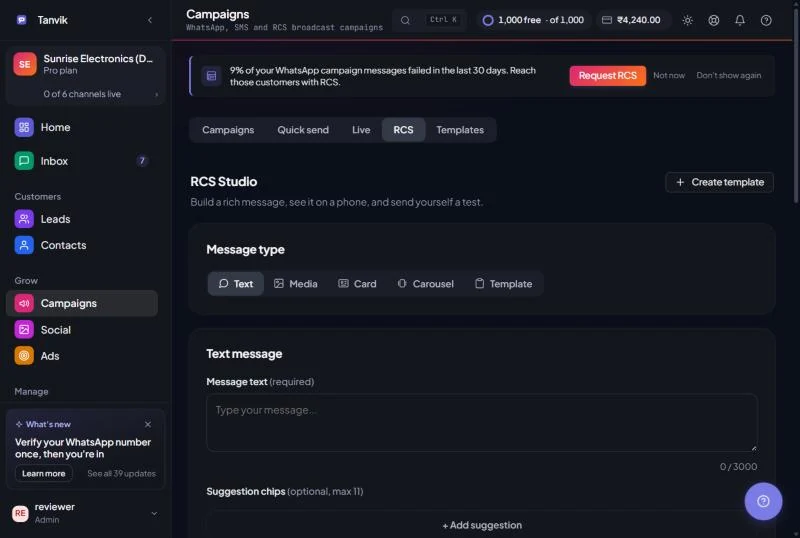
Open Campaigns → RCS. RCS Studio is where you build a message, see it on a phone and send yourself a test.
01
Pick a Message type
Choose Text, Media, Card, Carousel or Template. The phone on the right shows a live preview.
02
Add your content
Text: up to 3,000 characters plus optional suggestion chips. Media: upload an image or video (JPG, PNG, GIF or MP4, up to 10 MB) with an optional caption. Card: a title, description, image and up to 4 action buttons. Carousel: up to 10 cards. Template: pick one of your approved templates, set the language, and fill Parameters (key → value) for its variables.
03
Check the number
Under Send test message, type the recipient phone with country code (for example +91 98765 43210) and click Check RCS to see if that phone can receive RCS.
04
Add fallback text and send
Write a Fallback text (sent if the device can't receive RCS) and pick a Fallback channel: None (RCS only) or WhatsApp. The list also shows SMS, which is under development. Click Send Test Message. You see a success message, or the reason it failed.
Suggestion chips can be Quick Reply, Open URL or Dial, with a label of up to 25 characters. A Test mode badge at the top means your RCS bot isn't live yet, so check Channels.
app.tanvik.io/campaigns#rcs
Send an RCS campaign
Open Campaigns → New campaign and choose RCS as the channel. You need an approved RCS template: a WhatsApp template won't show here, and the form tells you where to create an RCS one. Pick the audience and send. RCS campaigns can't be scheduled, so they go out when you send them. Full steps are in Send a broadcast.
RCS only reaches phones and networks that support it. Check RCS tells you before you send. Your recent checks appear under Capability check history.
Result
What it means
What to do
RCS capable
The phone can receive RCS. "(cached)" means the answer came from an earlier check.
Send as normal.
Not RCS capable
The phone cannot show RCS messages.
Reach them on WhatsApp instead.
Processing…
The check has been submitted but there is no answer yet.
Try again in about 30 seconds.
Not cached
No answer is available for this number yet.
You can still send.
Always add a fallback text. It costs nothing to write and gives you a plain-text version for phones that can't show RCS.
Chat on the RCS tab of your Inbox
Open Inbox and click the RCS tab (next to WhatsApp and Social). It works like the WhatsApp tab, but only shows RCS conversations. Unlike WhatsApp, RCS has no 24-hour reply window.
01
Start a chat
Click the + button next to the RCS list title (or + New chat on the empty screen). Enter the phone number with country code and an optional name, then click Start chat. If a chat with that number already exists, Tanvik opens it.
02
Send messages
Type a reply (up to 3,072 characters), attach a file to send it as RCS media, or send an approved RCS template: choose it under Choose RCS template, fill its variables and send. Commerce workspaces can also send a catalog product, which goes out as a rich card.
03
Respect opt-outs
Marking a conversation as DND stops all future RCS messages to that number (campaigns and agent sends) until you remove DND.
If a banner says RCS is not enabled for this workspace, or that no RCS bot name is configured, you can still read threads but sends will fail. Check the RCS row in Channels, or contact support.
Common problems
New template is greyed out, or the page says RCS is not enabled
RCS isn't active on your workspace yet. Click Request activation on the RCS row in Channels. If it already says Being set up, our team is still working on it.
My template isn't in the template list
Only Approved RCS templates can be sent. Open Templates → RCS and click Sync to pull the latest status. Remember that WhatsApp templates don't work for RCS.
"Only JPG or PNG images are accepted"
Template card images must be JPG or PNG. Convert GIF or WebP files before uploading. (Media messages in RCS Studio also accept GIF and MP4.)
"This contact's phone number is not a valid RCS destination"
Check the number has the right country code. If it is correct, the phone may not support RCS; reach them on WhatsApp instead.