Manage, monitor and retarget campaigns
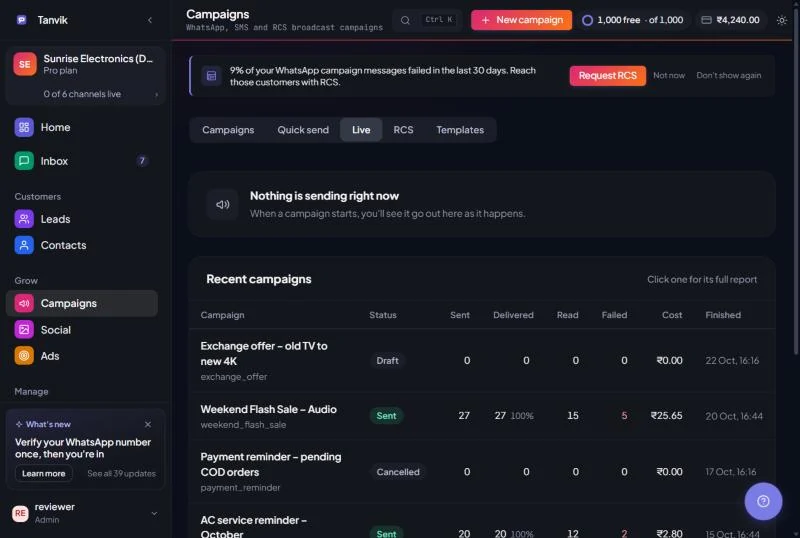
Open Campaigns from the sidebar (under Grow). One bar at the top holds all the sections. They switch instantly, without reloading the page, and each one has its own link ending in #quick-send, #live, #rcs or #templates.
| Section | What it's for |
|---|---|
| Campaigns | Every campaign as a card, with totals for the last 30 days. |
| Quick send | One template to a list of people in a few clicks. See Quick send. |
| Live | Campaigns that are sending right now. A green dot on the tab means something is sending. |
| RCS | RCS Studio. Shown only when RCS is switched on for your workspace. See RCS messaging. |
| Templates | Your WhatsApp and RCS templates. See Create a WhatsApp template. |
The Retarget page is not in the sidebar. Press Ctrl + K (Cmd + K on Mac) anywhere in Tanvik and type Retarget to open it.
At the top of the Campaigns section, a Last 30 days strip shows four numbers: Delivered, Read, Spent and Failed, each with its share of messages sent. The strip also tells you what is sending now, or how many campaigns you have in total. Spent is an estimate from the messages sent; the wallet shows the real charge.
Below it, find a campaign with the search box (Search campaigns or templates), the channel buttons (All, WhatsApp, RCS) and the Status menu. Every status in the menu shows how many campaigns it holds.
Each card shows the channel, the campaign name, the date and the template category, then one number up front: the share of sent messages that were delivered, such as 98% delivered, 1,304 of 1,335 sent. The bar underneath shows delivered in blue, the part already read in grey, and failed in red. At the bottom you see the cost and the rate per message. Until a campaign has sent, the card says when it goes out, or that it is not sent yet.
| Status | Button on the card |
|---|---|
| Draft | Send runs the cost check, then sends. |
| Scheduled | Send now sends it immediately. Cancel moves it back to Draft. |
| Sending | Pause, on campaigns sent as one batch (more than 10 people). Follow it on the Live section. |
| Paused | Resume, on the same campaigns. |
| Sent or Failed | View opens the report. A failed campaign shows See why. |
Click anywhere on a card to open its report. The … menu on a card has Open report and Delete campaign. Deleting cannot be undone. A workspace with no campaigns shows No campaigns yet and a Create campaign button.
Once a campaign has been billed, its card shows what was actually taken from your wallet. Before that, the cost is based on where the recipients are, because WhatsApp is priced by destination country.
Click New campaign to build a campaign with the full audience picker, CSV variables and scheduling. The complete walkthrough is in Send a broadcast. A few things worth knowing:
- Scheduling works for WhatsApp campaigns only. See Scheduling.
- RCS campaigns need an approved RCS template. See RCS messaging.
- SMS campaigns are under development.
- If you close the New campaign window by accident, Tanvik reopens it with your entries the next time you load Campaigns in the same browser.
- On an approved template in the Templates section, Use in campaign opens New campaign with that template already picked.
- Campaigns are always paid from your wallet. Your 1,000 free messages each month are for inbox replies and your AI Agent. See Free messages and how messages are billed.
Quick send limits. Quick send can't upload header media. If the template has an image, video or document header, save the file on the template first, or use New campaign. Templates with an Order Details (pay) button can't be sent from Quick send. For a Multi-product template you can pick up to 30 products and one Thumbnail product.
The Live section shows one card for each campaign that is sending, with a progress bar (sent of total, and the amount charged so far) and chips for sent, delivered, read, failed and pending. Everything updates as it happens, with no refresh. When nothing is sending, it says Nothing is sending right now.
| On the live card | What it does |
|---|---|
| Show live feed / Hide live feed | Lists the latest 50 recipients with the time and status of each message as they go out. |
| Stop sending | Stops the campaign after you confirm. Messages that were already sent are not recalled. |
| High failure rate warning | Appears when more than 5% of sent messages have failed. Consider pausing and checking the reasons before it continues. |
Under the live cards, Recent campaigns lists the latest finished ones with sent, delivered (and delivery %), read, failed, cost and when they finished. Click a row for its full report.
Open any campaign to see its report. It leads with the delivered share and a bar, then five numbers: Recipients, Sent, Delivered, Read and Failed. How it went shows the same steps from everyone you chose to everyone who read it. Details lists the quality score, time to send, channel, template, cost and status. Meanings of each number are in Reading your campaign stats.
The Quality score runs from 0 to 100 and is built from the delivery rate and the read rate. 70 or more reads Good, 40 to 69 reads Fair, and below 40 reads Needs work. If the campaign has Voice AI calls turned on, workspace admins also see a card with the calls placed.
| Tab | What you get |
|---|---|
| Failure analysis | One row for each reason WhatsApp gave, most common first, with how many messages and what share of the failures. Each row says what happened and What to do, with the error code underneath. |
| Per-message log | Every recipient with status, sent time (IST), delivered time and the reason it failed. Hover a reason for its explanation. |
| Export | Per-message CSV for your records, and Failed numbers (retarget list), the failed numbers with their error code and description. |
No reasons yet? WhatsApp sends the reason a few minutes after each message. The report says Reasons are on their way. Wait, then open it again. A number marked Not confirmed in the log had its sending interrupted. It was deliberately not retried, so nobody gets the same message twice. Check the chat to see whether it arrived.
Three ways to send a second message to exactly the right people.
Smart segments (updated nightly from order history): VIP customers (3+ orders, ₹10k+ spent), At risk — win-back (no order in 45+ days) and New customers (first order placed). Contacts marked Do Not Disturb are left out. By ad campaign lists everyone who messaged you from a Click-to-WhatsApp ad. By group and By tag list everyone in a contact group or with a tag.
Click a card and Quick send opens with those contacts loaded as a recipients button. Pick a template and send. Need lead status, a Do Not Disturb exclusion or a CSV? Click Open full Audience picker.
Was this article helpful?