AI & Automation

Set up your AI Voice Agent

8 min readUpdated October 2026Where switched on for your workspace
The Voice Agent is an AI that makes phone calls to your leads. It runs on Vaani, our voice-calling partner. You decide what it says, what it must never say, how long a call can run and what it should note down. The summary and outcome of every call land on the lead, so your team knows who to follow up.
What it does
Calls your leads from a script you control
It opens with your greeting, follows your instructions and can mention real lead details, such as the product the lead asked about.
Answers exact questions word for word
Add questions and answers it must repeat as you wrote them, and rules for words it must not improvise on, like "final price".
Tags every call with an outcome
Outcomes such as Interested or Callback Requested become the lead's Disposition in Leads.
Reports every call
The Overview tab lists each call. The lead shows a summary of the call, and the Activity tab has a View transcript link.
Before you begin
Find it under Automate → Voice Agent. This opens the Voice Agent tab of the Calls page. If you do not see Voice Agent in the sidebar, it is not switched on for your workspace yet. Tap Request activation on the Voice Agent card in your dashboard setup list and our team will take it from there.

There are two ways a workspace can run the Voice Agent. You can tell which one you have from the tabs:

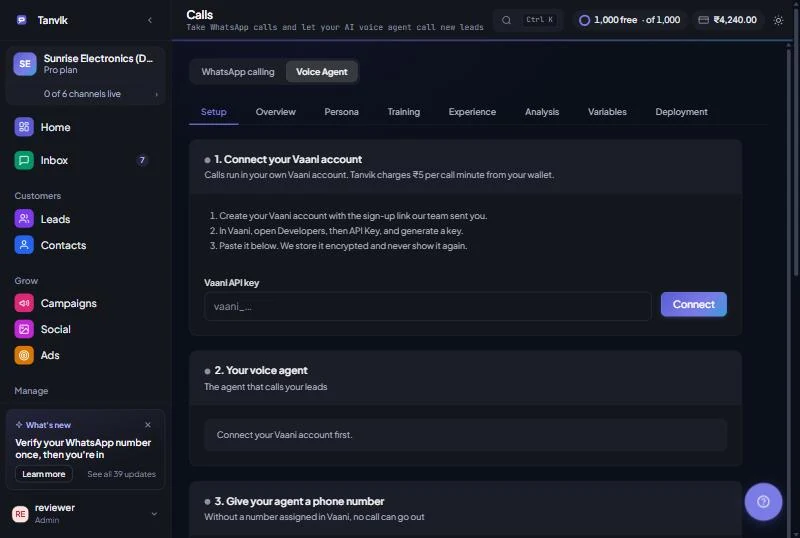
  • Your own Vaani account. The page has a Setup tab. You connect your Vaani account, create the agent and attach a phone number yourself. Follow Connect your own Vaani account first, then come back here to tune the agent.
  • Set up by our team. There is no Setup tab. Our team connects the agent for you. You can fill in every tab, but until the team switches it on the Overview says "Your voice agent isn't switched on yet" and no calls are made.
The tabs
TabWhat you set there
SetupOwn-account workspaces only. The six steps that connect Vaani, create the agent, attach a number and place a test call.
OverviewWhether the agent is live, how many calls it has made, outcome counts and the latest calls.
PersonaThe greeting and the main instructions.
TrainingQuestions and answers to repeat word for word, the safety level and rules.
ExperienceSpeaking pace, voicemail handling, silence limits and the longest call.
AnalysisCall outcomes and the details to pick up from each call.
VariablesLead details sent to the agent on every call.
DeploymentThe phone number your agent calls from.
Tune your agent step by step

Each tab has its own save button, named after the tab (for example Save Persona). Switching tabs does not save. When the Overview shows Live, the text beside the button says "Changes you save reach your agent straight away". The button Refresh from Vaani at the top of a tab loads whatever is currently on the agent in your Vaani account.

01
Persona: greeting and instructions
Greeting is the first sentence the agent says when the call connects. Pause before greeting (seconds) gives the person a moment after they pick up (0 to 10). Who speaks first is either Wait for the person to say hello or The agent greets first. Can the greeting be interrupted? is Yes or No, it plays fully first. Instructions hold who the agent is, what it knows about your business and offers, how it should speak and what it must never say. Use {{variable_name}} for values from the Variables tab. Click Save Persona. The voice and language are shown on this tab but changed in Vaani (Design → Agents → Persona); then click Refresh from Vaani.
02
Training: exact answers and rules
Under Questions & answers, write one per line as question => answer. The agent uses them word for word. Safety level is Basic, Medium or Strict. Under Rules, write one per line: trigger words, then =>, then what the agent should say instead, for example final price, exact price => Our team will share exact pricing shortly. Longer documents such as price lists and brochures are uploaded in Vaani under Design → Knowledge Base. Click Save Training.
03
Experience: how the call feels and ends
Speaking pace is Patient, Balanced or Quick. Longest call (minutes) can be 1 to 60 and the agent wraps up when it is reached. You pay per started minute, so keep it short. Turn on Voicemail detection so the agent recognises answering machines, then choose If voicemail answers: Hang up or Leave a message. Set how long silence can last before a nudge and before the agent hangs up (each 5 to 60 seconds), plus the lines it says. Click Save Experience.
04
Analysis: outcomes and details to capture
Under Call outcomes, write one per line as outcome | when to use it. A new agent starts with Interested, Not Interested, Callback Requested, Booked Visit and No Clear Response. The outcome becomes the lead's Disposition, so keep these names. Leave the box empty to turn outcome tagging off. Under Details to extract, write one per line as name | what to look for | optional (yes/no), for example budget | The budget or price range the customer mentioned | yes. Click Save Analysis.
05
Variables: pass lead details to the agent
For each variable, type a Variable name (for example model_name) and choose a lead field under From lead field. Click + Add variable for more, then Save Variables. In the Persona instructions write {{model_name}} where the value should go.
06
Deployment: the phone number
This tab shows the number your agent calls from; people you call see this number. To change it, type the new number and click Change number. Buying numbers, inbound calls and your own SIP trunk are managed in Vaani under Design → Telephony. The number steps are explained in Connect your own Vaani account.
Lead fields you can use as variables
Lead name · Phone · Email · Company · Source · Intent · Last message · Status · Funnel stage · Notes
Form name (Meta Lead Ad form, if used)
Ad headline and Ad body text (for leads that came from WhatsApp ads)
Team-managed agents. If our team runs your agent, the Persona, Training, Experience, Analysis and Deployment tabs show a shorter set of fields. When the Overview says "Managed by our team", changes are saved in Tanvik only: "Ask our team to apply changes to your live agent."
app.tanvik.io/calling#voice-agent
The Voice Agent Setup tab
Track your calls

The Overview tab shows four cards and a list called Recent call events with the columns When, Contact, Outcome and What happened (a Duration column appears when call length is available). It lists the latest 15 calls; the totals on the cards cover all your calls.

CardWhat it tells you
Agent configLive, "Last change didn't go through", or "Managed by our team". It also shows your agent ID once one exists.
Vaani accountOwn-account workspaces: Connected with the end of your key, or Not connected.
Calls loggedHow many calls, and when the last one was.
InterestedHow many calls ended Interested, with the Not interested and No answer counts underneath.

Calls where nobody picked up, or that went to voicemail, show as No Answer. A later call with a real answer replaces it on the lead.

Call a lead yourself

On own-account workspaces, the lead page has a Voice agent card with a Call this lead button once the agent is ready.

  • The agent calls between 8 am and 8 pm IST.
  • The button changes to Call queued, then Calling now. A lead can have one call at a time.
  • When the call ends, the card shows "Last call completed", the outcome, how long it lasted and when.
  • The card is titled From the voice call once a call has details to show.

People who reply to a campaign can also be called automatically. See Call people who reply to a campaign with Voice AI.

What it costs

On an own Vaani account, every call costs ₹5 per minute, charged to your Tanvik wallet when the call ends. The Setup tab shows the price before you place the test call. Charges appear in Billing & Wallet by day, named Voice call.

Calls pause when the wallet is low. If your wallet cannot cover one minute, the Overview shows "Voice calls are paused" with how many leads are waiting. Top up your wallet and calls resume on their own. See Wallet.
Tips for a better agent
Put the call goal in the instructions
Say who the agent calls for, what to confirm, what to capture and how to end. For example: confirm the enquiry, ask for budget and timeline, and say the team will follow up.
Use rules for anything risky
Prices, discounts and promises should have a rule so the agent never quotes numbers it cannot back up.
Keep the greeting short
One line with your business name and the reason for the call keeps people on the line.
Test before real leads
Place the test call from the Setup tab and listen. Change one thing at a time.
Do not use a variable you have not saved
Every {{variable}} in the instructions must exist on the Variables tab with a lead field selected.
Common problems
?
Overview says "Managed by our team"
Your settings are saved in Tanvik, but your agent is run by our team. Ask us to apply the change to the live agent.
?
Overview says "Last change didn't go through"
Your last save did not reach the agent. Open the tab you changed, check the values and click its save button again. If it keeps failing, contact support.
?
Overview says "Your voice agent isn't live yet"
On an own-account workspace, finish the steps on the Setup tab. Calls start going out once the key, agent and call results are connected.
?
No calls show on the Overview
Calls appear after the agent has dialled and Vaani has sent the result to Tanvik. On own-account workspaces, Setup step 4 must be green. See Connect your own Vaani account.
?
I changed the voice or language in Vaani but Tanvik shows the old one
Click Refresh from Vaani at the top of the tab.
?
The lead has no Call this lead button
The button shows only when your voice agent is ready to call and the lead has a phone number. On the Setup tab, check that every step is green.