Campaigns
Short links and QR codes that bring in leads
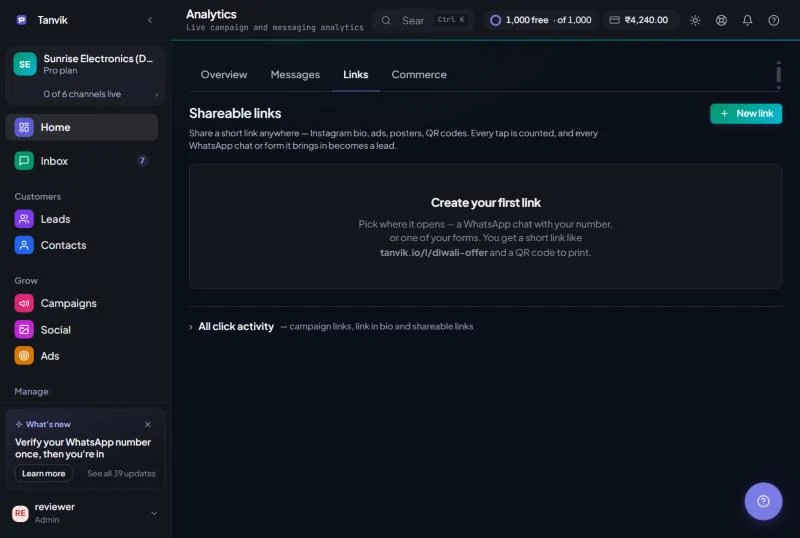
A shareable link is a short address like tanvik.io/l/diwali-offer that opens a WhatsApp chat with your number, or one of your forms. Put it on a poster, an ad or an Instagram bio, or print its QR code. Tanvik counts every tap, and everyone who messages you or fills the form becomes a lead, credited to that link.
Before you begin
Shareable links are on Growth, Pro and Custom plans. From Home, open Analytics & Reports and click the Links tab. Shareable links are at the top.
If the link opens a form, create the form first under Automate → Forms. See Capture leads with Forms.
Create a link
01
Click New link
In Analytics → Links, click New link (top right).
02
Name it and choose the short link
Give the link a Name your team will recognise, for example "Diwali offer – Instagram bio". The Short link fills in from the name, and you can change it: 2 to 40 lowercase letters, numbers or dashes, starting with a letter or number. If the short link is already taken, Tanvik asks you to try another.
03
Choose where it opens
WhatsApp chat: your business number is filled in (use the country code). Write the Message they send, for example "Hi! I would like to know more." Tanvik adds (Ref: your-link) at the end so it knows which link brought the chat.
A form: pick one of your active forms. Everyone who fills it becomes a lead.
A form: pick one of your active forms. Everyone who fills it becomes a lead.
04
Tag the leads (optional)
In Tag leads with, type tags separated by commas, for example "diwali, instagram". Every lead this link brings in gets those tags, so you can find them later or send them a campaign.
05
Click Create link
Copy the link with the copy icon next to it, or click QR to open its QR code and click Download PNG for posters, packaging or a shop window.
Use one link per place. Make a separate link for your poster, your Instagram bio and your ad. Then you can see which one brings in the most leads.
How leads are credited to a link
- WhatsApp link: when someone taps it, WhatsApp opens with your message ready to send. When they send it, the chat is credited to the link by the (Ref: …) line at the end of the message. If a customer deletes that line before sending, the chat can't be matched to the link, so don't ask people to edit the message.
- Form link: people who fill in the form from the link are credited to it.
- Tags on the link are added to each lead it brings in.
Reading the numbers
Pick 7d, 30d, 90d or All at the top. The cards add up all your links:
| Number | Meaning |
|---|---|
| Taps | How many times the links were opened. |
| Leads | Chats plus form fills the links brought in. |
| New leads | People who were new to Tanvik (first time in your workspace). |
| Tap → lead | Leads as a share of taps. |
The table below shows the same numbers for each link (Taps, Leads, New, Conv.), with what it opens. Under it, Leads from your links lists the latest people who came in, with whether they came by WhatsApp or a form. Click a name to open the lead.
Edit, pause or delete a link
- Edit changes the name, destination, message or tags. Changing the short link breaks the old link wherever it was shared.
- Pause stops a link without deleting it. While it is paused, people who tap it land on tanvik.io instead of your chat or form. Click Resume to turn it back on.
- The bin icon deletes it. The link stops working everywhere it is shared and its numbers are removed. The leads it brought in stay in your CRM. If you only want to stop it for now, pause it instead.
Common questions
How is this different from tracking links in a campaign?
Link tracking follows the links inside campaigns you send. Shareable links are for places where you can't send a message yourself, such as posters, ads and your bio. See Track link clicks from your WhatsApp messages.
Can I use one in my Instagram bio?
Yes. You can also make a full page with several buttons: see Make a link-in-bio page.
I don't see Shareable links
The Links tab appears on Growth, Pro and Custom plans. On Starter, you can upgrade under Billing & Wallet → Plan.
Was this article helpful?