See what your ads bring in, and create ads
- To see results, you only need your WhatsApp number connected. Chats that start from a Click-to-WhatsApp ad are tracked automatically, even for ads made in Meta.
- To create, pause, start or delete ads, connect your Meta ad account. See Connect your Meta ad account.
- Plans. Ads are part of the Pro plan.
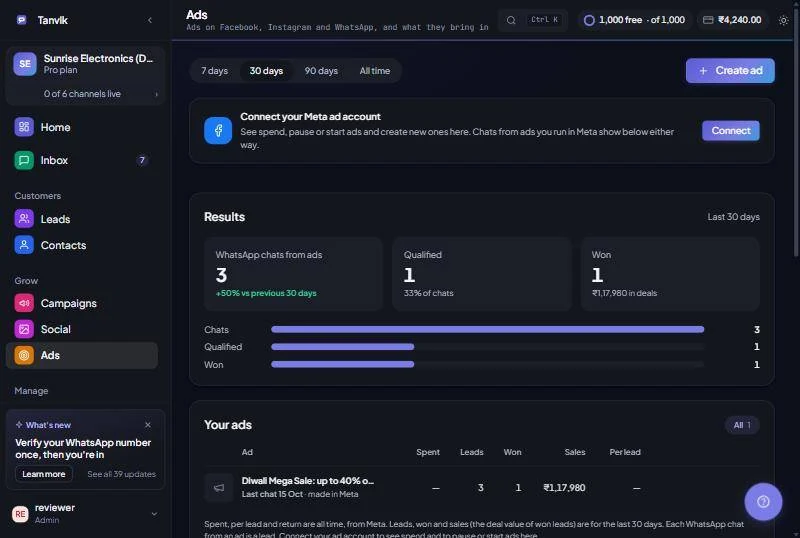
At the top, pick a period: 7 days, 30 days, 90 days or All time. Below it, a strip shows your connected Meta ad account and Page, with Sync and Switch buttons. A launch-readiness card sits under it (see below). Then:
| Section | What it shows |
|---|---|
| Results | WhatsApp chats from ads, Qualified and Won (with the value of the deals), compared with the period before. You may also see Form and Instagram leads, Spent and Return on spend. A small funnel shows how many chats became qualified and then won. |
| Your ads | One list of every ad. Filter by kind: WhatsApp chats, Lead form, Messages, Website, Awareness, Sales and so on. Each row shows Spent, Leads, Won, Sales and Per lead, and whether it was made in Tanvik or in Meta. |
| Latest leads from ads | The newest leads, with how they came in (WhatsApp, Form or Instagram). Click one to open the chat or the lead. All leads opens Leads. |
| Ad tools | Shortcuts: Reply to people from ads, Audiences, Lead forms, Boost a post and Open Meta Ads Manager (for billing, spending limits and advanced settings). |
- Won and Sales come from your leads. Mark a lead as Won and enter its deal value, and the ad that brought it gets the credit.
- Every WhatsApp chat that starts from an ad counts as a lead.
- Spent, Per lead and return are for all time, straight from Meta. Leads, Won and Sales follow the period you picked.
- An ad that only appears because it started chats (your ad account is not connected) shows Last chat and a date instead of a status.
- Spend and on or off status refresh from Meta every few hours, and when you open the page. Click Sync to refresh right now.
Once your ad account is connected, a card checks whether you can safely run live ads: your Facebook login, permissions, ad account, payment method and spending limit. It says Ready to run live ads, or names the first thing to fix. Click Details to see every check and what to do, and Check again after you fix something.
When you start an ad, Tanvik asks you to confirm and lists any problems Meta reports, because the ad starts spending your budget.
Click Create ad and pick what people should do when they see your ad. Your ad account must be connected first.
| Goal | What it does |
|---|---|
| Message you on WhatsApp (Recommended) | People tap the ad and a WhatsApp chat with your business opens. Chats land in your Inbox. Steps below. |
| Boost a post | Turns one of your published posts into a WhatsApp ad. Steps below. |
| Visit your website | Sends people to a page or your online store. See Website, sales and awareness ads. |
| Buy on your website | Finds buyers, measured with your Meta Pixel. See Website, sales and awareness ads. |
| Just see your ad | Reaches as many people as possible. See Website, sales and awareness ads. |
| Fill a quick form | A form opens inside Facebook or Instagram, and every answer comes into Tanvik as a lead. See Create a lead form ad. |
| Message you on Instagram | Made in Meta Ads Manager for now. Tanvik opens it for you. Every DM the ad brings lands in your Inbox and becomes a lead, tagged with the ad. |
Choose Message you on WhatsApp. The Create CTWA Ad window has three steps. Use Next and Back to move between them.
Choose Boost a post (or the Boost a post tool on the Ads page). Pick one of your published photo or carousel posts from Social posts. The WhatsApp ad window opens with the post's picture and text filled in: the ad name, the first 125 characters of the caption as the ad body, a headline and a pre-filled opening message. Check the text, choose your budget and click Launch Ad. The ad starts paused.
If no posts are listed, publish a photo or carousel in Social posts first. If the post's original picture is no longer stored, you are asked to upload it again.
Use the buttons at the end of each row in Your ads:
- Pause or Start switches an ad off or on in Meta. Starting asks you to confirm because the ad begins to spend.
- The trash button deletes an ad that is not running. It is deleted in Meta too. The leads and results it brought stay in your leads and reports.
- The lightning bolt button on a WhatsApp ad sets its first reply. See Choose the first reply for chats from ads.
Chats that came from an ad are labelled Click-to-WhatsApp Ad at the top of the conversation, with the ad's image and headline, so your team knows which offer the customer saw. In the WhatsApp tab of your Inbox, the From ads filter shows only those chats. Ad Stats in the conversation jumps back to the Ads page.
Everyone who messaged you from an ad can be sent a follow-up template later:
- On the Retarget page, click an ad under By ad campaign to load its contacts into Quick Send.
- Or in a new campaign, choose the ad under By ad campaign in the Audience dropdown. Contacts marked DND are left out.
Step-by-step in Manage and retarget campaigns.
Was this article helpful?