Build chatbots with Flow Studio
A flow starts when something happens — a customer sends a keyword, a new conversation begins, or a lead sits in a funnel stage. From there it sends messages, waits for answers, branches on what the customer picks, and takes actions like tagging the contact, creating a lead or handing the chat to your team.
Use Flow Studio for conversations. Use Automations for timed follow-up sequences. Here is how to choose:
| Flow Studio | Automations | |
|---|---|---|
| Best for | Chat bots, lead qualification, menus, booking questions, AI-assisted support | Drip sequences and follow-ups spread over hours or days |
| What starts it | A keyword, a new conversation, or a daily check on a funnel stage | A CRM or store event, such as Lead Created, Contact Created, Order Created, Payment Received, Cart Abandoned or a custom date field |
| Shape | A branching canvas — each button or answer can lead somewhere different | A step-by-step list of waits and messages |
| Reacts to replies | Yes — buttons, list menus, "Wait for reply" and AI blocks branch on the answer | Mostly time-based |
At the top of the flow list there are three ways to start:
| Button | What it does |
|---|---|
| New flow | Creates an empty flow called "Untitled flow" with one Keyword trigger block (keyword: hi) already on the canvas. |
| AI Builder | Describe your bot in plain English and click Generate flow. The AI builds the whole flow for you. Review every block before you publish. |
| Templates | Start from a ready-made flow and customise it. |
The template gallery includes:
| Template | What it does |
|---|---|
| Lead Qualifier (Real Estate) | Qualifies buyers by budget and timeline, and sends hot leads to an agent |
| Clinic Appointment Booking | Lets customers pick a slot from a list menu, confirms it and alerts the owner |
| Restaurant Order Taker | Sends the menu, captures the order with AI and alerts the owner |
| Cart Recovery (D2C) | A win-back sequence with an A/B-tested offer |
| AI Support Agent + Handoff | AI answers questions and sends complaints or urgent chats to a person |
| Omnichannel Blast (Smart Send) | Tries WhatsApp first, then RCS, then SMS (SMS is under development) |
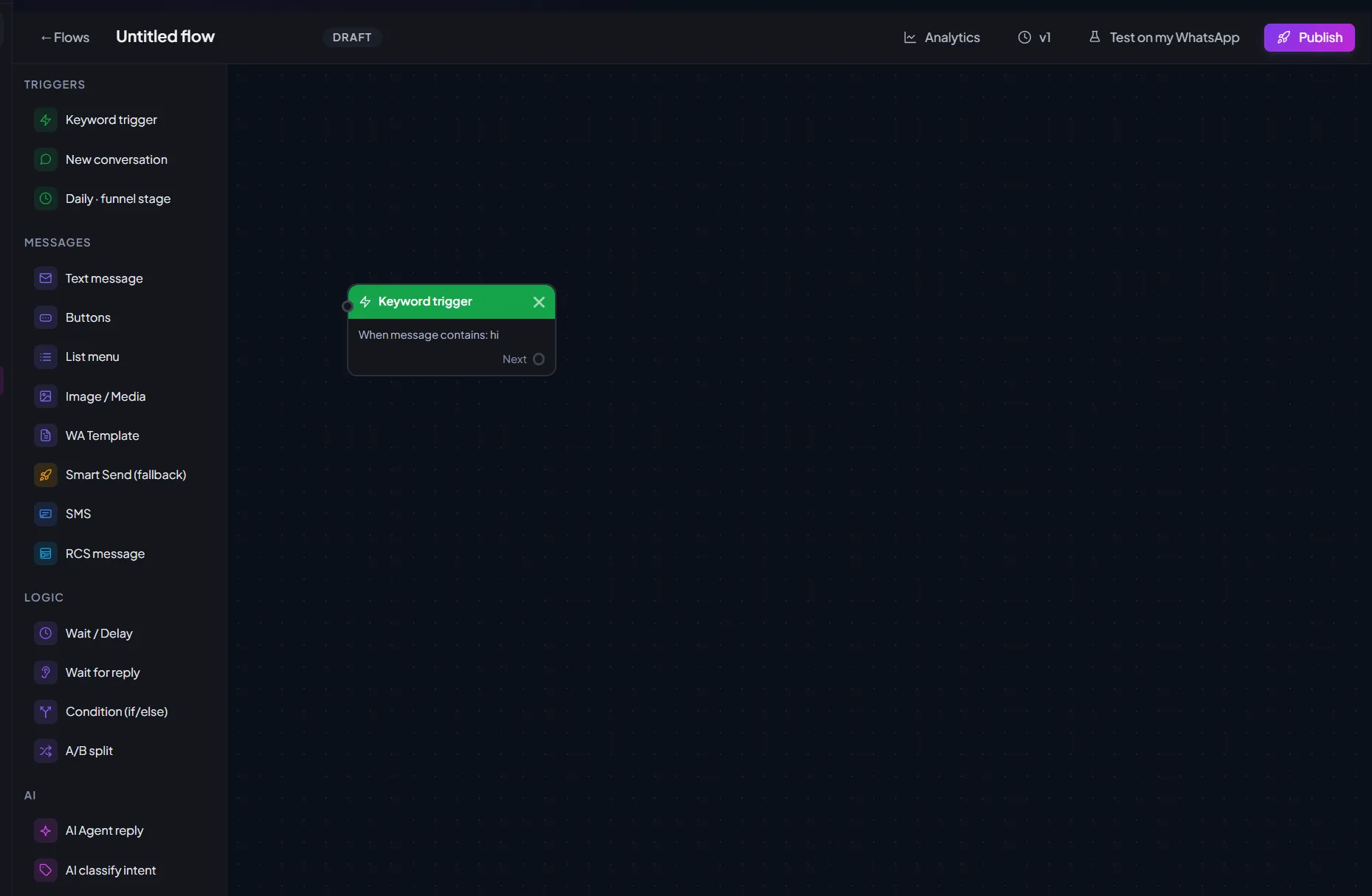
When you open a flow, the editor has three parts: the block palette on the left, the canvas in the middle and the settings panel on the right. The toolbar at the top holds the flow name, its status, and the Analytics, version, Test on my WhatsApp and Publish buttons.
| To do this | Do this |
|---|---|
| Add a block | Drag it from the palette onto the canvas, or click it in the palette (handy on mobile) |
| Connect two blocks | Click an output dot on the right side of a block, then click the input dot on the left of the block it should lead to |
| Remove a connection | Click the connecting line |
| Edit a block | Click it. Its settings open in the right panel, with a live message preview for message blocks |
| Move a block | Drag it by its coloured header |
| Delete a block | Click the × on its header, or select it and press Delete or Backspace |
| Move around | Drag an empty part of the canvas to pan. Scroll to zoom in and out |
| Rename the flow | Click the name in the toolbar and type |
Blocks with choices have one output per choice. A Buttons block has one output per button plus Any other reply. A Condition block has Yes and No. Each output connects to one next block — connecting it again replaces the old connection.
Blocks are grouped in the palette as Triggers, Messages, Logic, AI and Actions.
| Trigger | Starts the flow when… | Settings |
|---|---|---|
| Keyword trigger | An incoming message matches your keywords | Trigger keywords (comma separated). Match type: Contains or Exact word |
| New conversation | A brand-new conversation begins on WhatsApp | None |
| Daily · funnel stage | Once a day, for every lead currently in a funnel stage. The same lead is not triggered twice on the same day | Funnel stage (exact match) |
| Message block | Sends | Settings |
|---|---|---|
| Text message | A plain message | Message text, and Send on channel: WhatsApp (default), RCS, Instagram DM or FB Messenger (SMS is also listed but is under development) |
| Buttons | A message with quick-reply buttons | Message text, buttons (max 3), reply timeout (minutes) |
| List menu | A message with a tap-to-open list | Message text, list button label, list options (max 10), reply timeout (minutes) |
| Image / Media | An image, video or document | Type, a public https URL, optional caption, send on channel |
| WA Template | An approved WhatsApp template | Approved template name and language code (e.g. en) |
| Smart Send (fallback) | One message on the first channel that succeeds: WhatsApp → RCS → SMS (SMS is under development) | Message text |
| SMS | A text message. SMS is under development, so do not use this block yet | SMS text (160 characters is ideal) |
| RCS message | An RCS message | RCS message text |
| Logic block | What it does | Outputs |
|---|---|---|
| Wait / Delay | Pauses the flow for a set number of days, hours and minutes | Next |
| Wait for reply | Waits for the customer to answer, up to a timeout in minutes (default 24 hours) | Replied · No reply (timeout) |
| Condition (if/else) | Checks a field — Last reply, Contact name, Channel, AI intent, vars.budget, Funnel stage and more — with contains, equals, not equals, greater than, less than or has any value | Yes · No |
| A/B split | Sends a percentage of contacts down variant A and the rest down variant B | Variant A · Variant B |
| AI block | What it does | Outputs |
|---|---|---|
| AI Agent reply | Your AI Agent answers, then the flow continues | Next |
| AI classify intent | Sorts the customer's message into categories you define, e.g. interested, not interested, question | One per category |
| AI extract fields | Pulls details such as name, city or budget out of the customer's reply and saves them as variables | Next |
| Action block | What it does |
|---|---|
| Add tag / Remove tag | Adds or removes a tag on the contact |
| Set field | Saves a value into a variable you name |
| Create lead | Adds the contact to Leads at the stage you choose: New, Contacted, Qualified, Proposal, Won, Lost or Closed |
| Human handoff | Pauses the bot and assigns the chat to an agent, with an optional message to the customer first. Ends the flow |
| Alert owner | Sends a WhatsApp alert to a number you enter, e.g. "{{name}} needs attention" |
| Webhook / API call | Calls a URL of your choice with POST or GET, so you can notify another system |
| Jump to flow | Continues in another flow you've built. Ends this flow |
Message text can include variables that Tanvik fills in for each customer:
| Variable | Becomes |
|---|---|
| {{name}} | The contact's name |
| {{phone}} | The contact's phone number — useful in Alert owner messages |
| {{vars.slot}} | Any value saved earlier in the flow by AI extract fields or Set field. Replace slot with your field name |
For example, an AI extract fields block set to extract slot lets a later message say "Your appointment is noted for {{vars.slot}}."
| Status | Meaning |
|---|---|
| Draft | Never published. Not replying to customers |
| Active | Live and replying to customers |
| Paused | Stopped with Pause. Click Publish to make it live again |
This flow greets every new customer, asks what they need and sends them to the right place.
| Action | How |
|---|---|
| See how a flow performs | Click Analytics in the toolbar. Each block shows how many contacts entered it. Click a block for Entered, Sent, Clicked and Errors counts |
| Stop a flow | Open it and click Pause |
| Delete a flow | On the flow list, click the bin icon on its card and confirm. The flow stops responding to new messages |
| Share a flow with a teammate | Copy the address bar while the flow is open. The link opens straight into that flow |
Next to the Flow Studio tab at the top of the page you will see a WhatsApp Forms tab. WhatsApp Forms are Meta's in-chat forms: customers fill them in on screens inside WhatsApp. They now live in Forms (the WhatsApp forms tab), and the tab here simply opens that page. See Capture leads with Forms.
Messages a flow sends are billed from your wallet at your message rates. They do not use your 1,000 free monthly messages, which cover the Inbox and the AI Agent. See Free messages and how messages are billed.
You can also use a published flow as the first reply to people who message you from an ad, for one ad or for all of them. See Choose the first reply for chats from ads.
| Problem | Fix |
|---|---|
| "Add a trigger block first" | Drag a block from the green Triggers group onto the canvas |
| "Connect your trigger to the first message" | Click the trigger's output dot, then the input dot of your first message block |
| "Enter number as +91XXXXXXXXXX" | Test numbers need a + and country code, with no spaces |
| My edits aren't reaching customers | Changes save to the draft. Click Republish to make them live |
| A button or menu option does nothing | That output isn't connected. Every button output needs a line to a next block |
| Image doesn't send | The media URL must be a public https link that opens without a login |
| Template block fails | Use the exact name of an Approved template and its language code. See Create a WhatsApp template |
Was this article helpful?